
See what's happening today
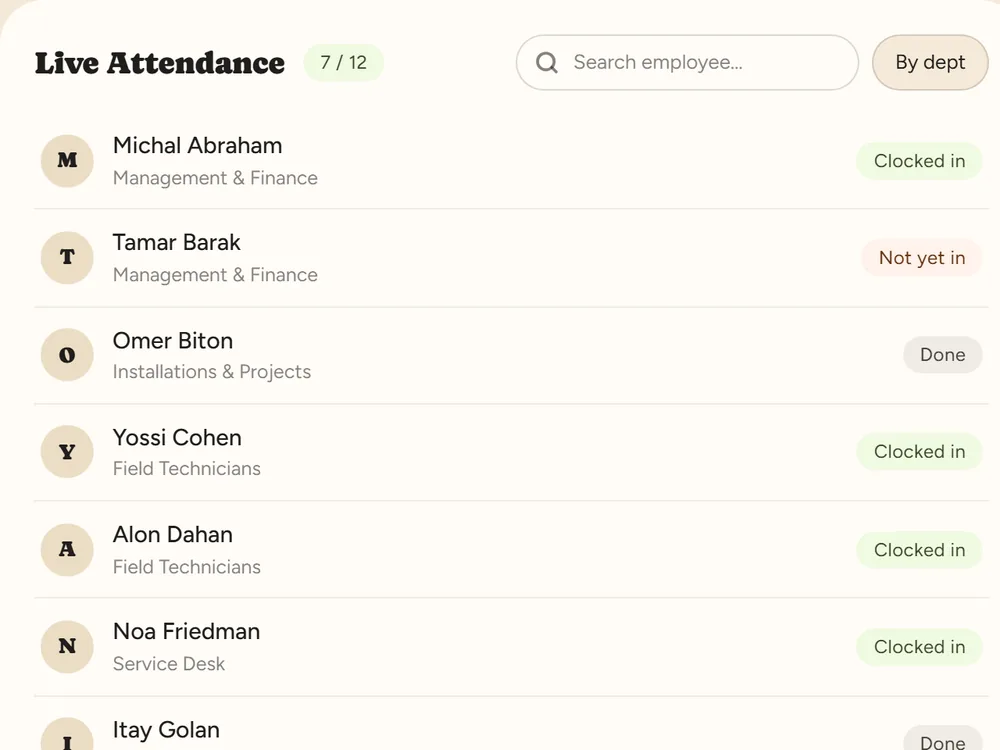
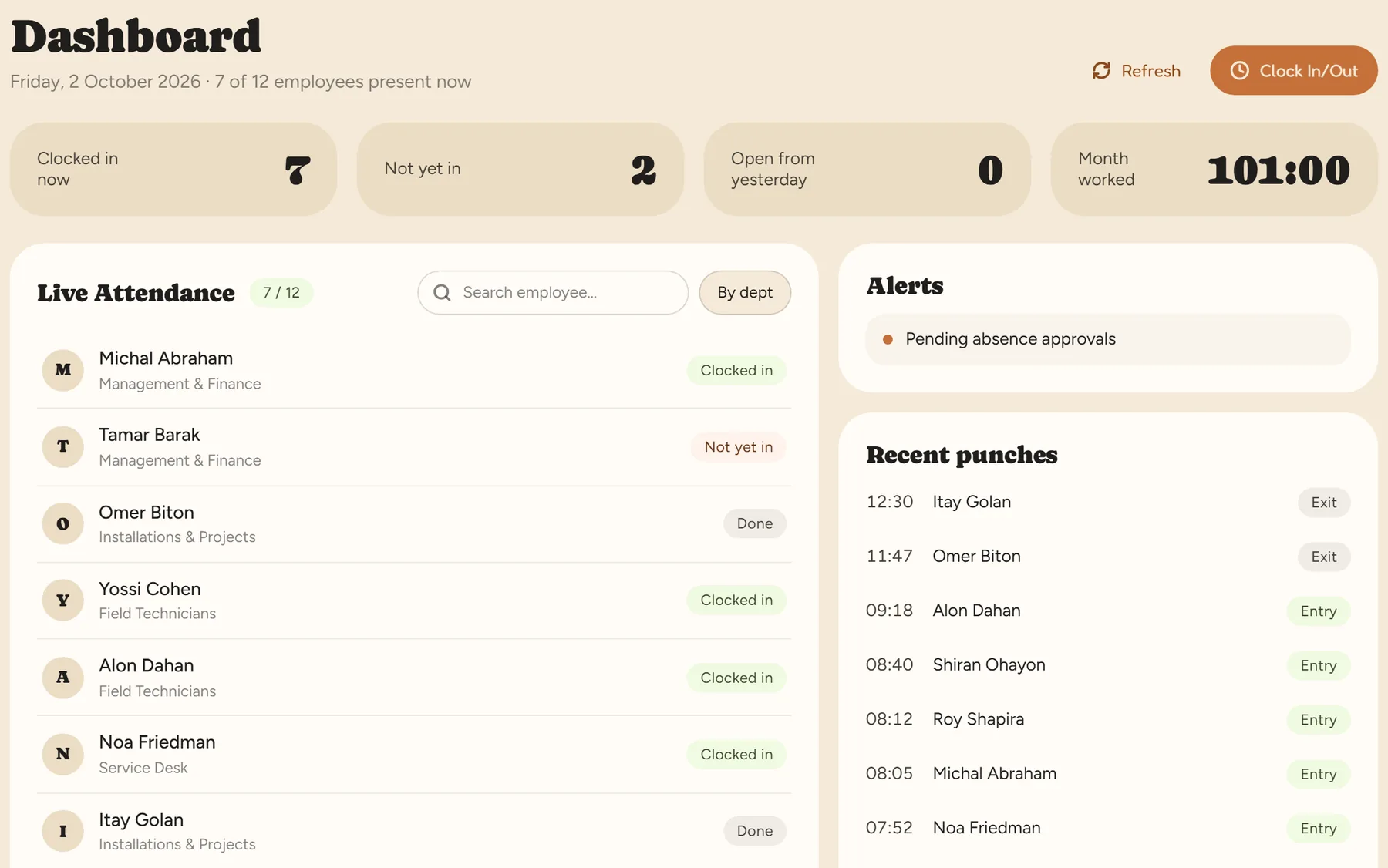
Who is in, who hasn’t arrived and who has finished — live, without calling anyone.
Clock-in from the phone, shift scheduling, Form 101 and employee files — everything you need to know who’s at work and reach payroll in order. Also through ChatGPT and Claude.
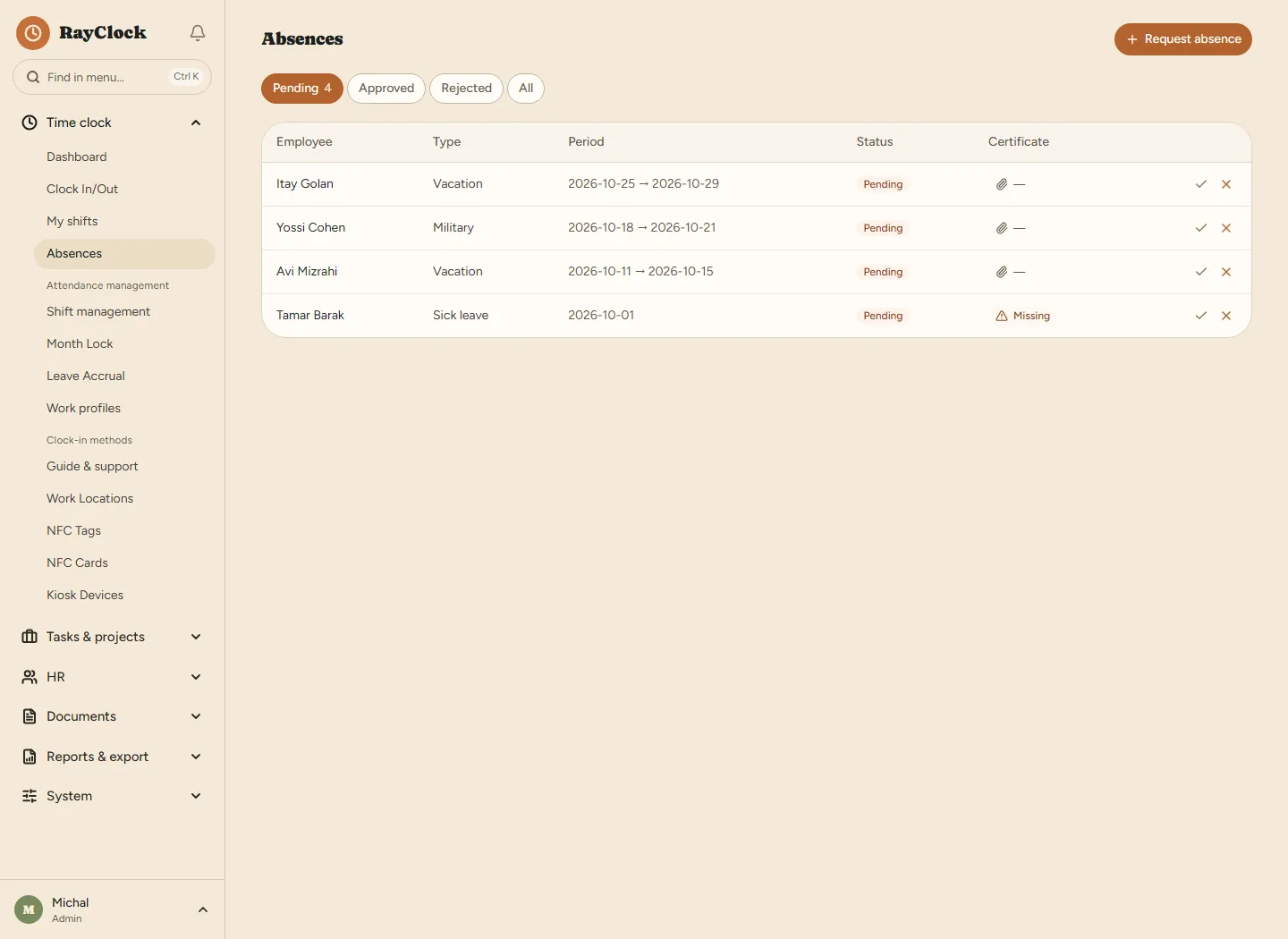
Attendance, reports, absences and Form 101 — the screens you need, with your own business’s data.
From clock-in to report ↓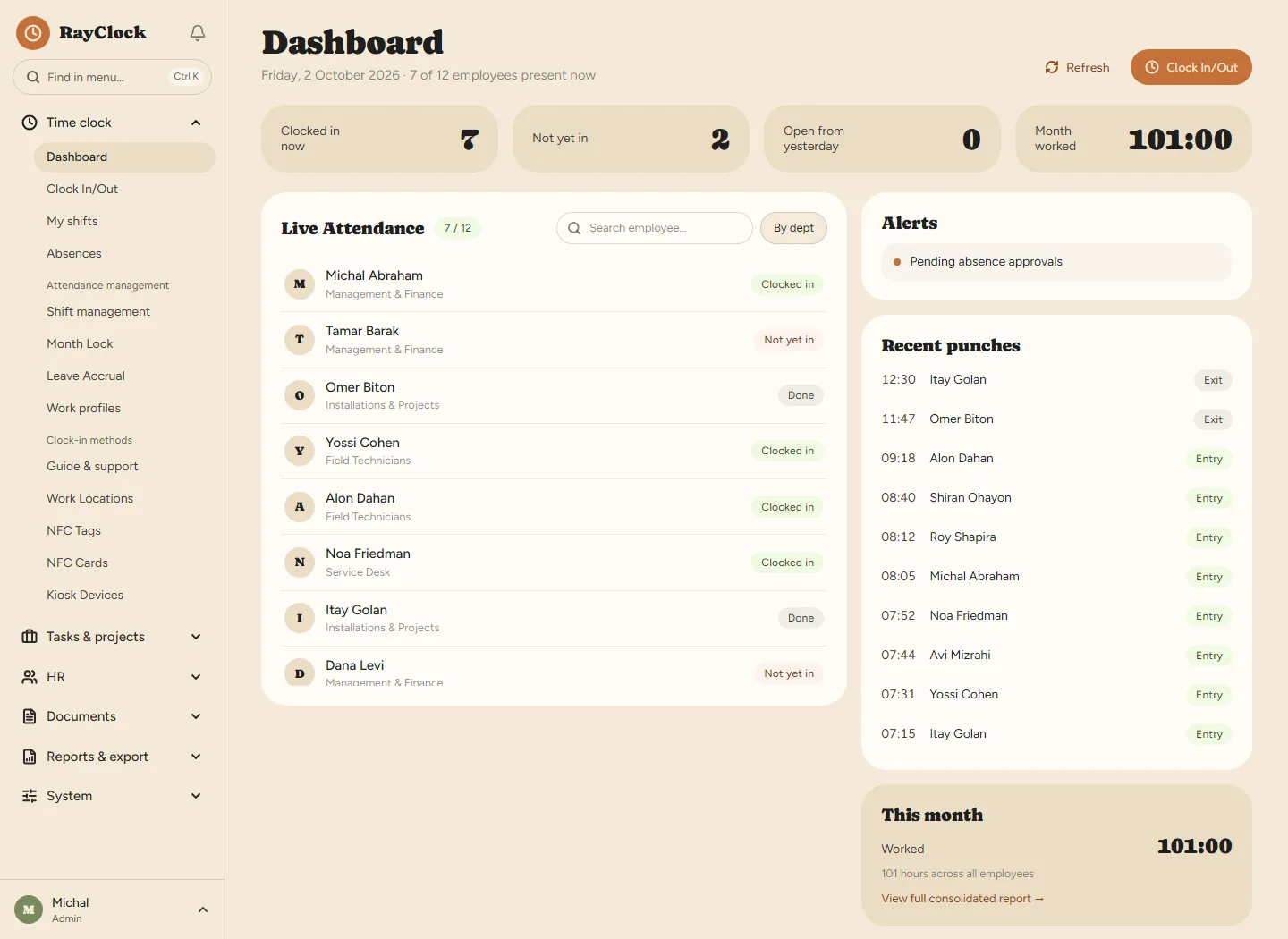
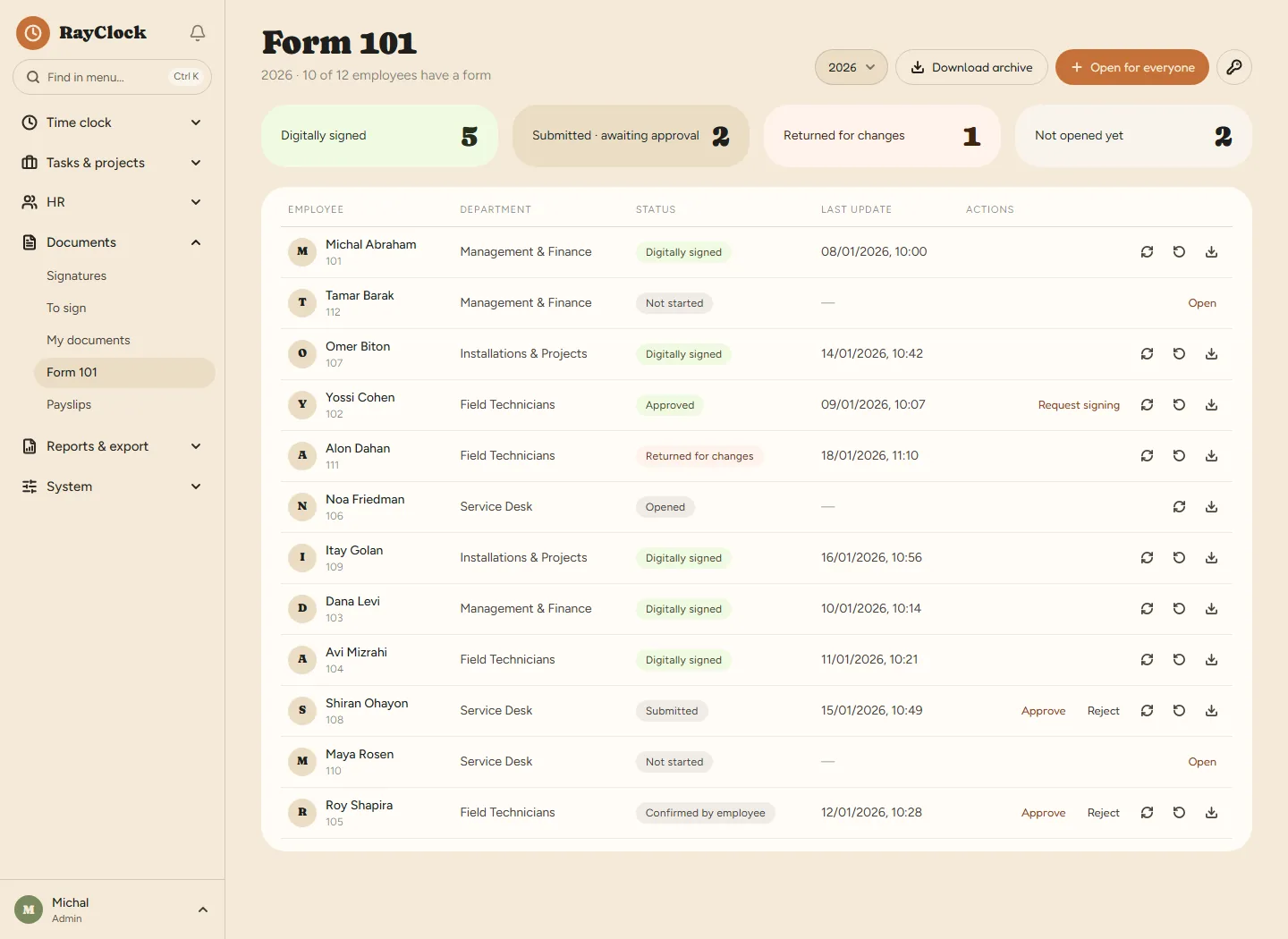
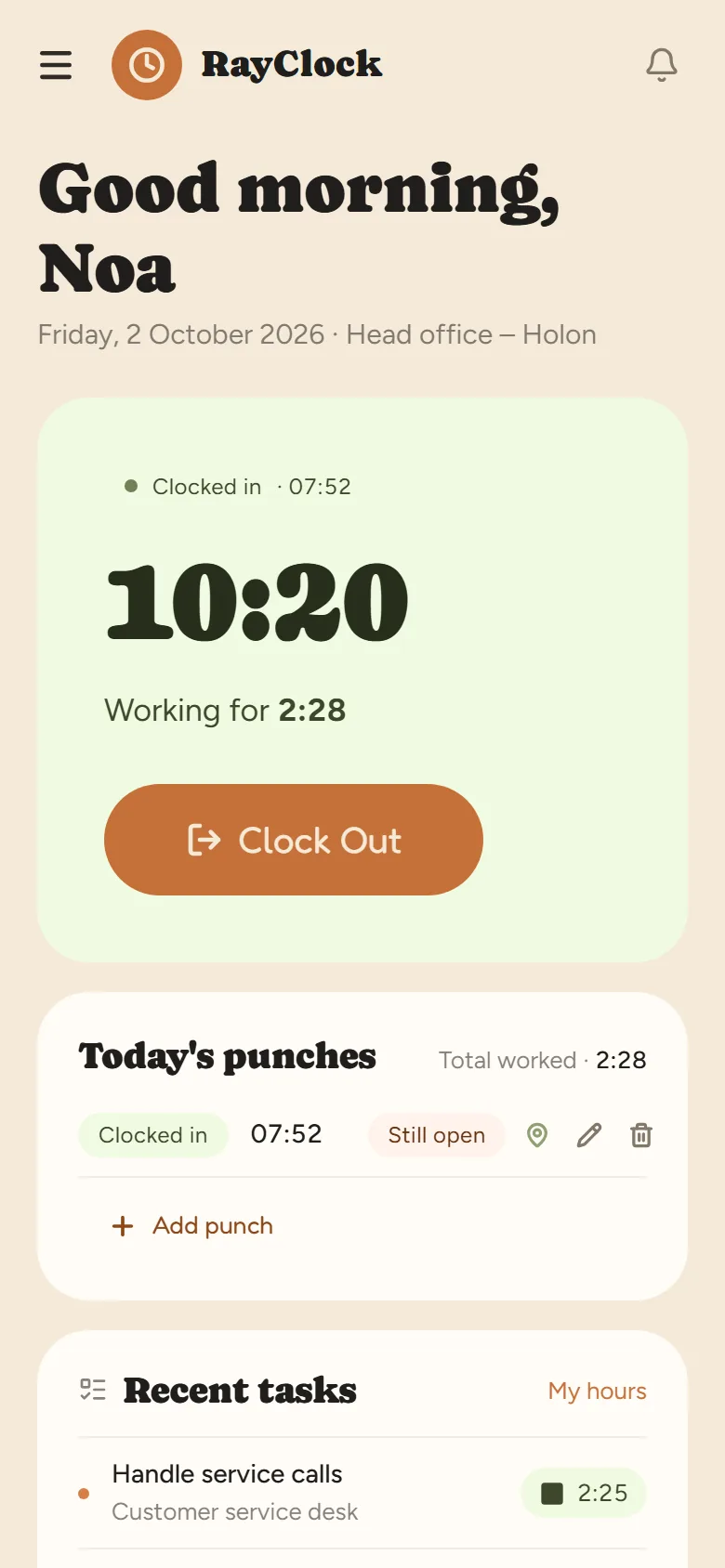
Who is in, who hasn’t arrived and who has finished — live, without calling anyone.
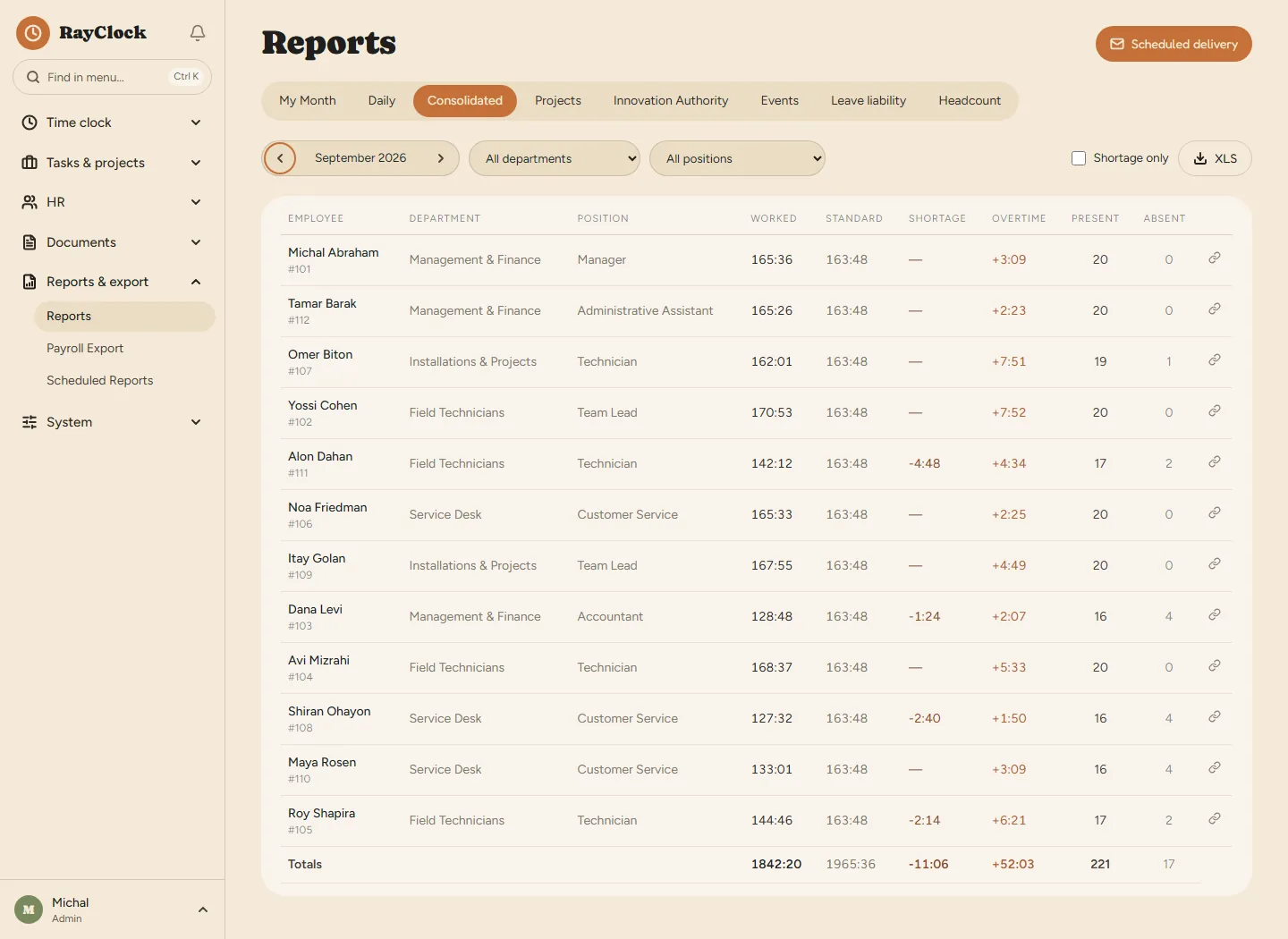
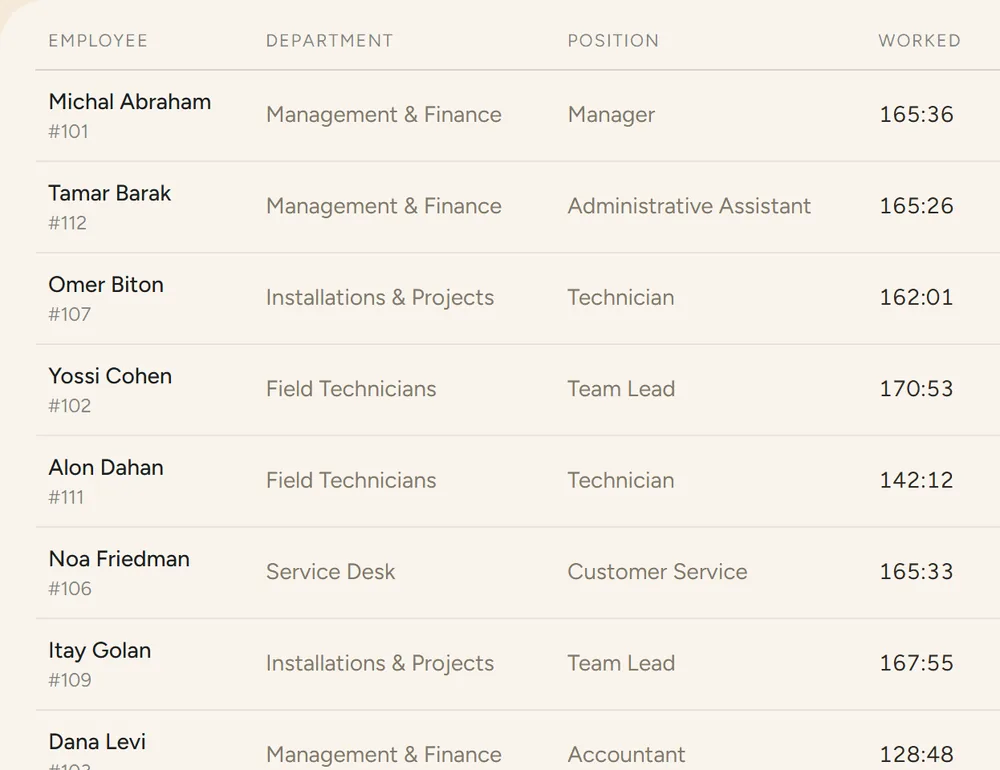
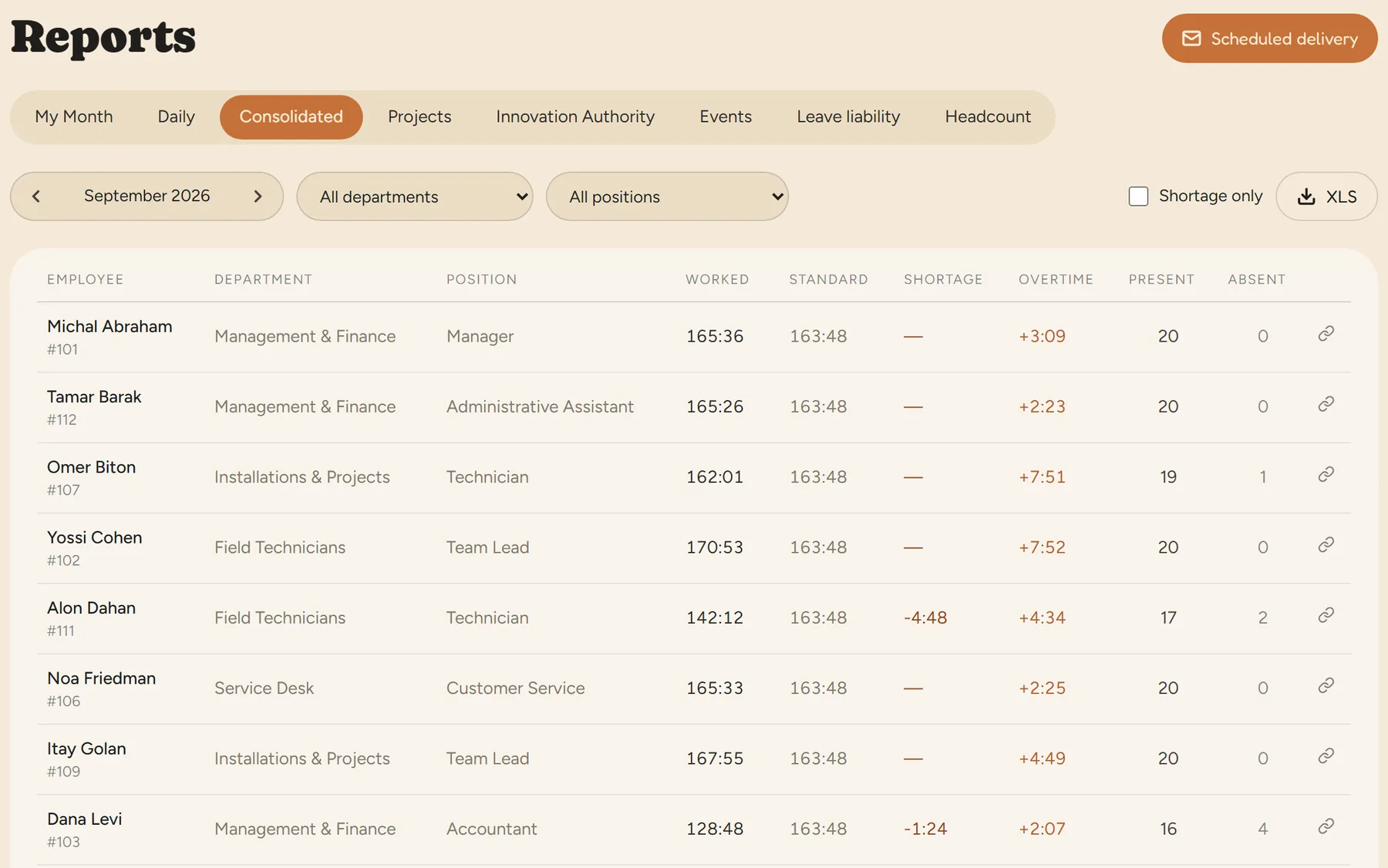
Hours, overtime and absences for every employee are calculated for you — ready to check and send to payroll.
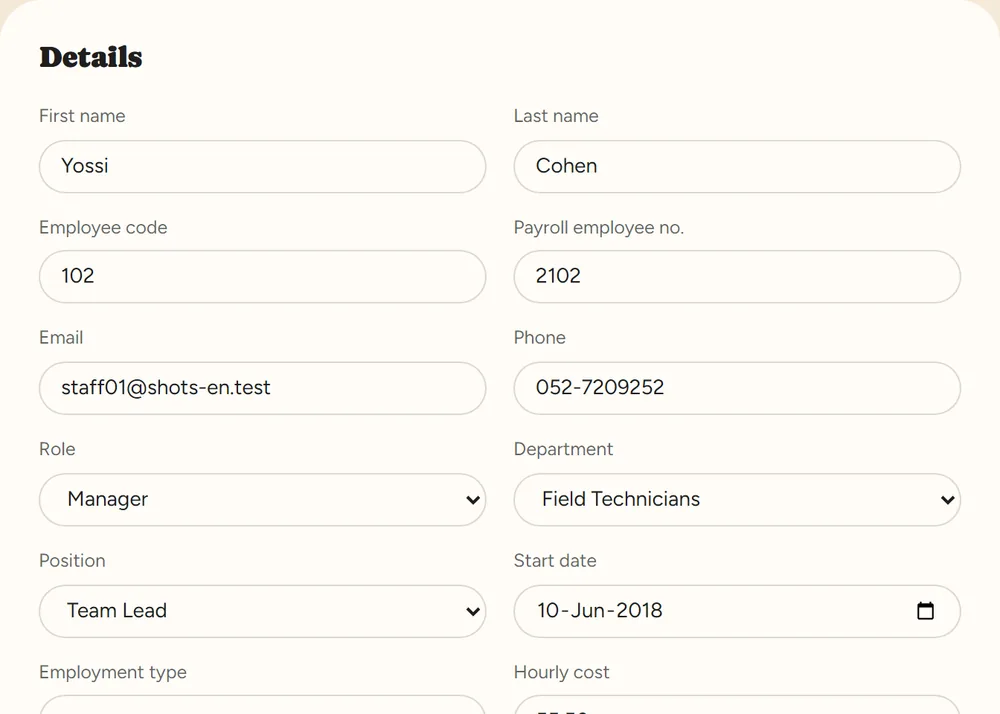
Personal details, role, department and employment terms — one file per employee.
Connect your assistant, ask about your data and have it take action, from attendance and employees to shifts, approvals and reports. Every change waits for your approval.
Illustrative examples. The names in these chats are not real business data.
Each manager handles their own team. You see the whole company — without switching between separate reports.
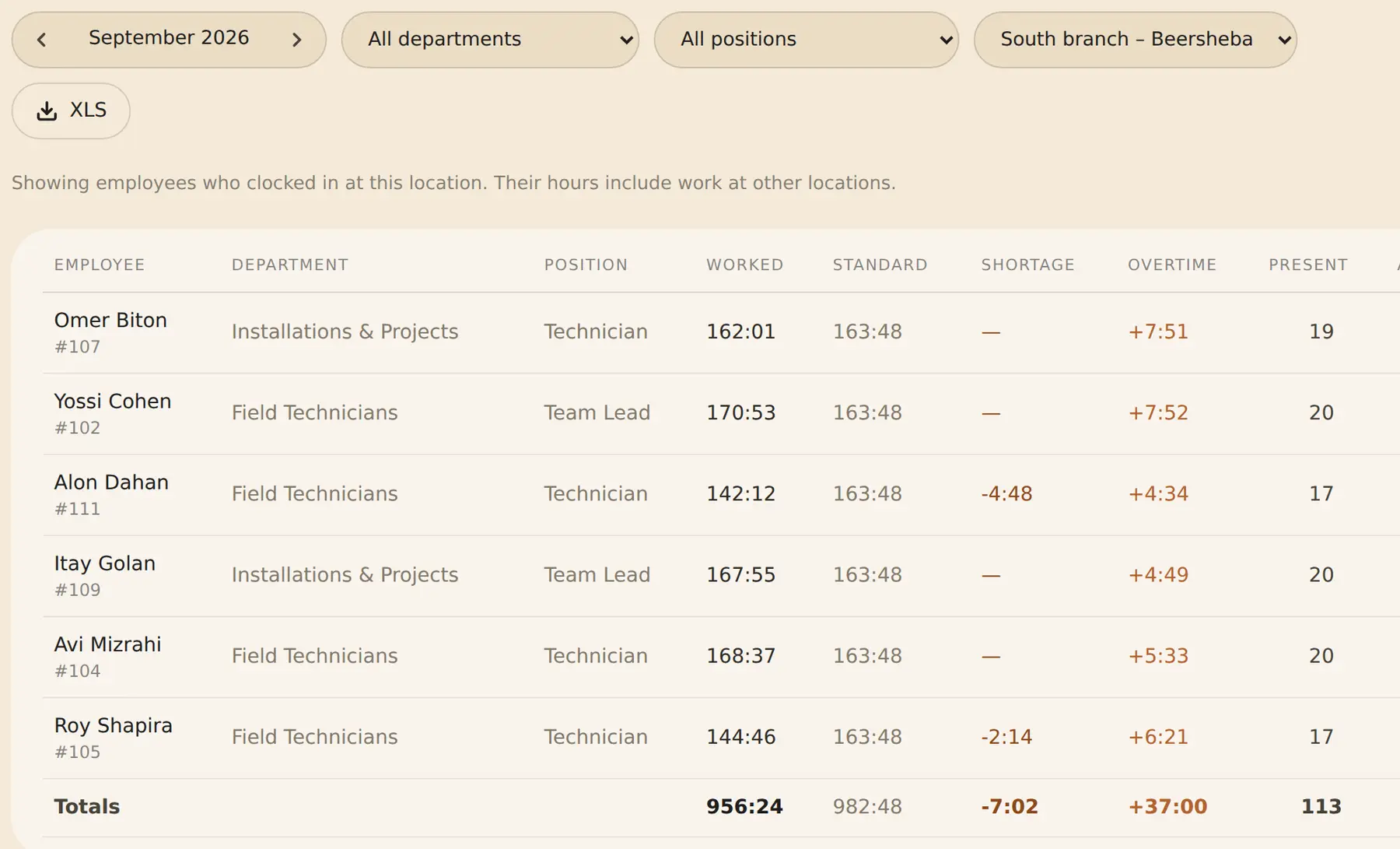
Site management in RayClock
From a local business to a large company — pick your kind of workplace and see the options that fit it.
 Chains and branches
 Large companies
 Restaurants
 Retail
 Construction and sites
 Service and call centers
 Clinics
 High-tech
More industries: Security, cleaning and staffing · Manufacturing · Logistics and delivery · Hotels · Nursing and care homes · Kindergartens and daycare · Nonprofits
The employee taps Clock in on a computer, the phone app or an NFC tag at the door. The time is recorded — and, if you turned on location checks, that they were on site. With a published rota, you also see who arrived for their shift.
The manager sees who is in, who hasn’t arrived and who has finished — in real time. A punch missing? Fix it with a reason, and the change is kept in the log.
At month-end, hours, overtime, Shabbat and holidays are already calculated. Review, lock the month and export to payroll.
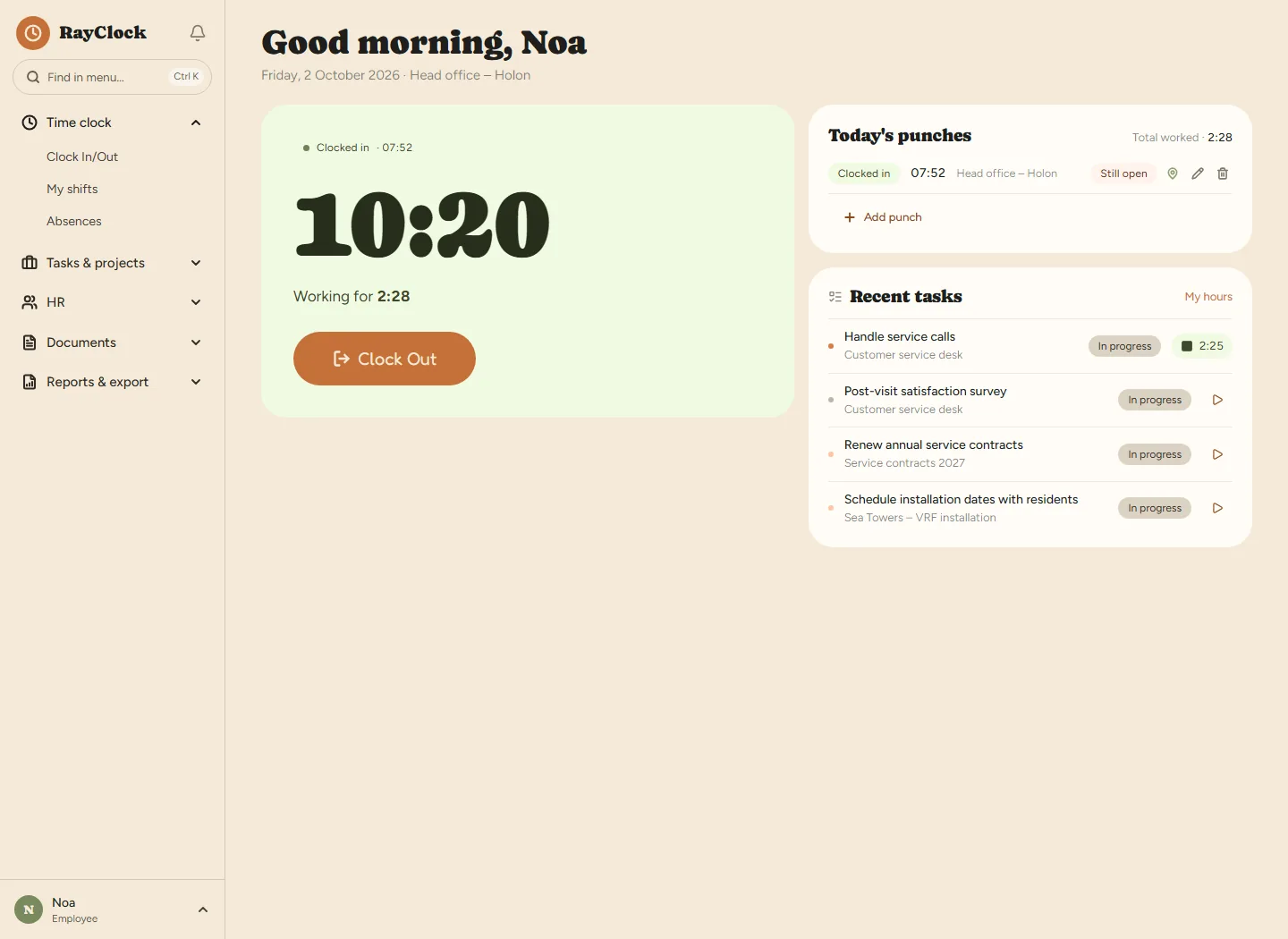

Three steps from a new account to an employee's first clock-in. Start with one employee and add the rest later.
RayClock is built for Israeli labor law, and the people who answer you are the team that builds it. Set it up yourself with the guide, or book a call and do it together.
Sign up, verify your email and set your work week. Add employees by hand or import a list from Excel and send invitations. You can start with one employee and add the rest of the team later. Setup guide.
You can start with clock-in from a phone or computer, without buying a time clock. If it suits your business, you can add NFC tags or NFC cards. NFC equipment is billed separately. All clock-in methods.
Yes. The RayClock app is free on the App Store for iPhone and on Google Play for Android, in Hebrew, English and Russian. Employees clock in and out with it (wall NFC tags included), see their hours and shifts, request time off and sign documents and Form 101. Anyone who'd rather not install it can clock in from the phone's browser with the same email and password. More about the app.
Yes. You set up sites, each with its own clock-in radius, plus departments and sub-departments. Each manager sees and approves within their own departments, and the admin sees the whole company. Reports can be filtered by department or site. More on managing branches.
You produce a file from an export template and import it into your payroll system. Shiklulit has a dedicated format; for other systems we check whether an Excel or CSV file fits. We’ll be happy to check your payroll system with you before you start. More on payroll export.
The trial lasts 14 days, up to 100 employees, with no credit card. After that, the monthly price ranges from ₪14 per active employee for a team of up to 10 to ₪5 for a team of 131–150, excl. VAT. With annual billing you get 12 months for the price of 10. Above 150 employees we offer a custom quote. No setup fee; Form 101 and NFC equipment are billed separately. Full pricing.
A company admin connects RayClock to a Claude or ChatGPT account that supports custom connectors, and can let managers and employees connect their own assistants too — a manager’s sees only the departments they manage, an employee’s only their own data. You can then do almost everything you do in RayClock from the chat: ask about attendance, employees, absences and monthly hours, export reports and the payroll file, and — if you chose to allow changes — add and correct punches, approve requests, lock the month, add and update employees, schedule shifts and send announcements to the team. Only a few sensitive actions, such as deleting punches or changing pay, stay in the app on purpose. The assistant asks for your approval before every change, and every action is logged. ID numbers, bank details and salaries are not passed to the assistant. Connection guide.
The team that builds RayClock also helps with setup. You can book an intro call of about 20 minutes, get help choosing how your team clocks in and check the payroll export together. Reach us by email or WhatsApp; we usually reply within one business day. Book a call.