By industry
Time clock for kindergartens and daycare
A small team, lots of part-time positions, substitutes when someone is ill — and onboarding paperwork that comes back every school year.
What RayClock does for you
A job percentage for each employee
In the employee file you record the employment type — full-time, part-time or hourly — and the job percentage. Leave accrual can be proportional to the job percentage. Need to work it out? Job percentage calculator.
Substitutes
Add a substitute as an hourly employee and send her an invitation by email or SMS. When she isn’t working for a while, mark her inactive and you don’t pay for her.
Onboarding without paper
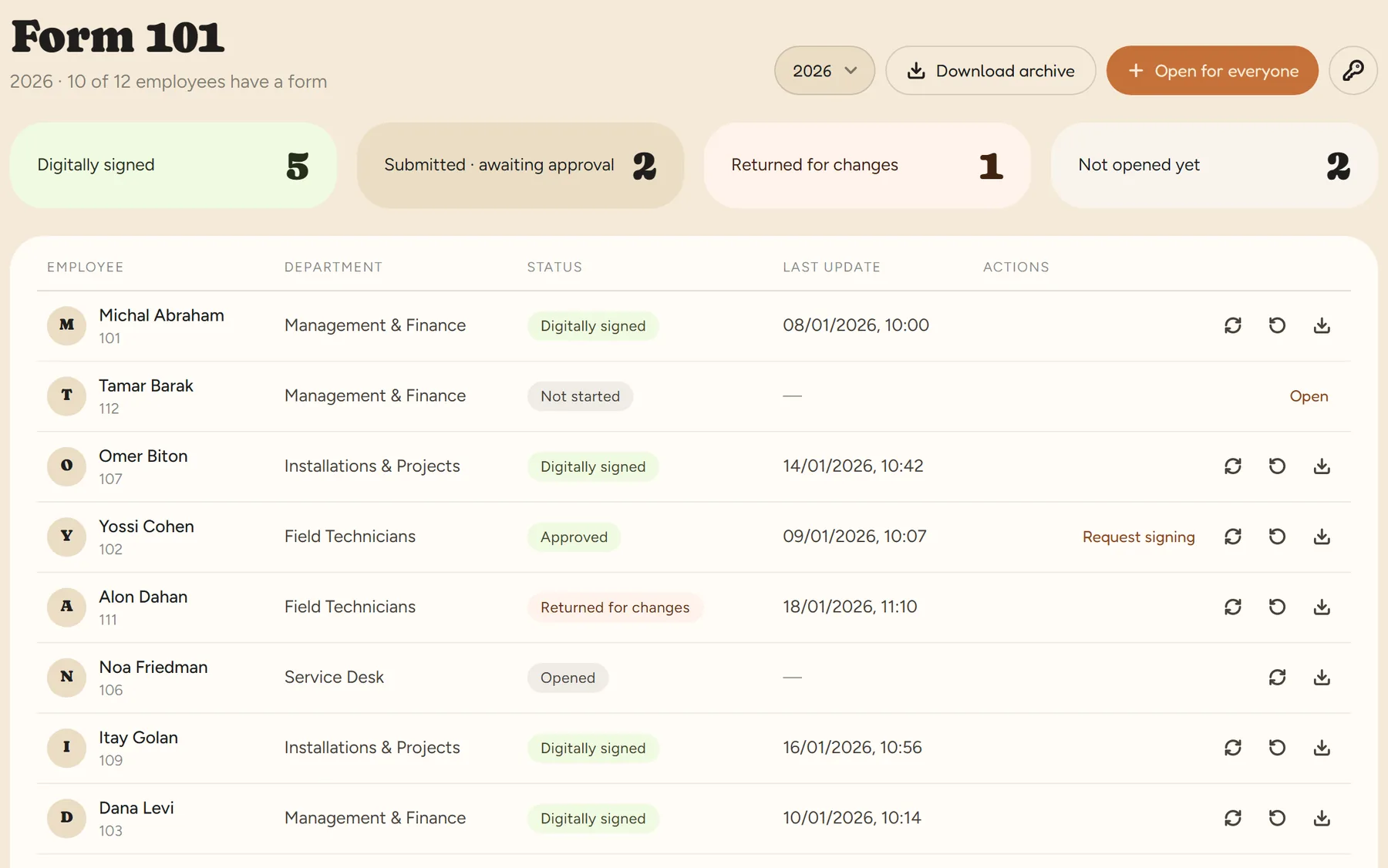
A digital Form 101, an employment contract with a digital signature, and documents saved in the employee file — all from the phone.
Clock-in at the door
An NFC tag by the door: the employee holds her phone to it and she’s in. Or clock in from the phone with location check, which is checked only at the moment of the punch.
Sick days and leave from the phone
The employee requests leave or reports a sick day from her phone, the manager approves, and balances update by themselves.
Several kindergartens, one account
Each kindergarten gets its own work site and department. Each manager sees her own team, and at month end there is one payroll file.
A day at the kindergarten
- 01
07:10 · OpeningThe assistant holds her phone to the NFC tag at the door. The manager sees on the dashboard who has arrived.
- 02
07:20 · A sick callA teacher reports a sick day from her phone. The manager approves and calls the substitute, who clocks in from her phone when she arrives.
- 03
13:00 · End of a part-time shiftAn assistant in a half-time position clocks out. Her hours go into the monthly report.
- 04
16:30 · End of the afternoon programmeThe afternoon staff clock out. If someone forgets, the manager gets an alert about the punch left open.
- 05
Month endReview the report, lock the month and export to payroll. Payslips are uploaded, and each employee sees her own in the app.
Practical questions
How do we work out an assistant’s job percentage?
Actual hours divided by full-time hours, times 100. You can check it in the job percentage calculator and then record it in her employee file. Changes to the file are kept with history.
A substitute works a few days a month. Do we pay for her every month?
Billing is by the accounts that are active on the billing date. Mark a substitute who isn’t working for a while as inactive, and reactivate her when she comes back — her file is kept.
Is Form 101 included in the price?
The connection to the service is built into the system at no extra charge from us. The signing itself is done by an approved external provider, who bills you directly for its service.
Can we keep certificates such as first aid?
Yes. In each employee’s file you keep certificates and trainings with an expiry date, and the system sends an alert before they expire.
Do we need to buy a time clock for every kindergarten?
No. Staff clock in from their phone or at an NFC tag on the wall. A kiosk with employee cards is an option, not a requirement.
We only have six employees. Is it a fit?
Yes. Pricing is per active employee with no setup fee, and you start with a 14-day trial with no credit card.
Job percentage and pro-rata rights are general information and not legal advice. A collective agreement, an extension order or a personal contract may set different terms.
Want to try it with your kindergarten team?
A 14-day trial, up to 100 employees, no credit card. After that, pricing is by active employees.