Does RayClock work with ChatGPT and Claude?
Yes. RayClock has an MCP server at https://api.rayclock.co.il/mcp. Add it as a custom connector in Claude or as a plugin in ChatGPT, and approve the connection on RayClock’s screen with your RayClock account.
What can the assistant do in RayClock?
Almost everything you do in RayClock: ask about attendance, employees, absences, monthly hours and the shift schedule; add missed punches and correct an existing punch’s time (with a reason), close open punches and record absences; approve or reject requests; lock the month and export the payroll file and other reports; and, in companies with shift management, assign and remove shifts, copy a week and publish the schedule. An admin can also add a new employee and send their sign-in invitation by email or SMS, update employee details, deactivate or reactivate an employee, assign a work profile, manage departments and send announcements to employees. Managers act only on their departments, and employees only on their own data. A few sensitive actions stay in the app on purpose, as a security choice: changing a user’s role, email or pay, deleting punches, reopening a locked month and approving bank-detail changes.
Can I just ask the assistant to close the month?
Yes. Write, for example, “Close September and do whatever it takes”. The assistant checks what’s still open, closes open punches by the work schedule, shows you pending leave requests to approve, exports the payroll file, locks the month and sends the report to your accountant. When a decision is needed, such as whether a missing day was sick leave or a forgotten punch, it asks, and it asks for your approval before every change. Locking the month and sending the report are admin actions.
Who can connect an AI assistant?
By default, only a company admin, with their RayClock email and password. Under System → AI assistants, the admin can also allow managers, employees or both — two separate switches, off by default. Turning a switch off stops that group’s connections immediately. A manager’s assistant sees and acts only on the departments they manage, within their RayClock permissions; an employee’s assistant sees only that employee’s own data.
What can an employee’s assistant do?
Only things about that employee: hours worked this month vs. expected, missing days and overtime, their punches, leave balances and absences, and exporting their own monthly report as a one-time download link. If they chose “allow changes”, it can also request an absence (it goes to their manager for approval as usual), add a punch they forgot — only if the company lets employees correct their own punches — and submit their monthly report. It never sees other employees’ data.
Can the assistant change data?
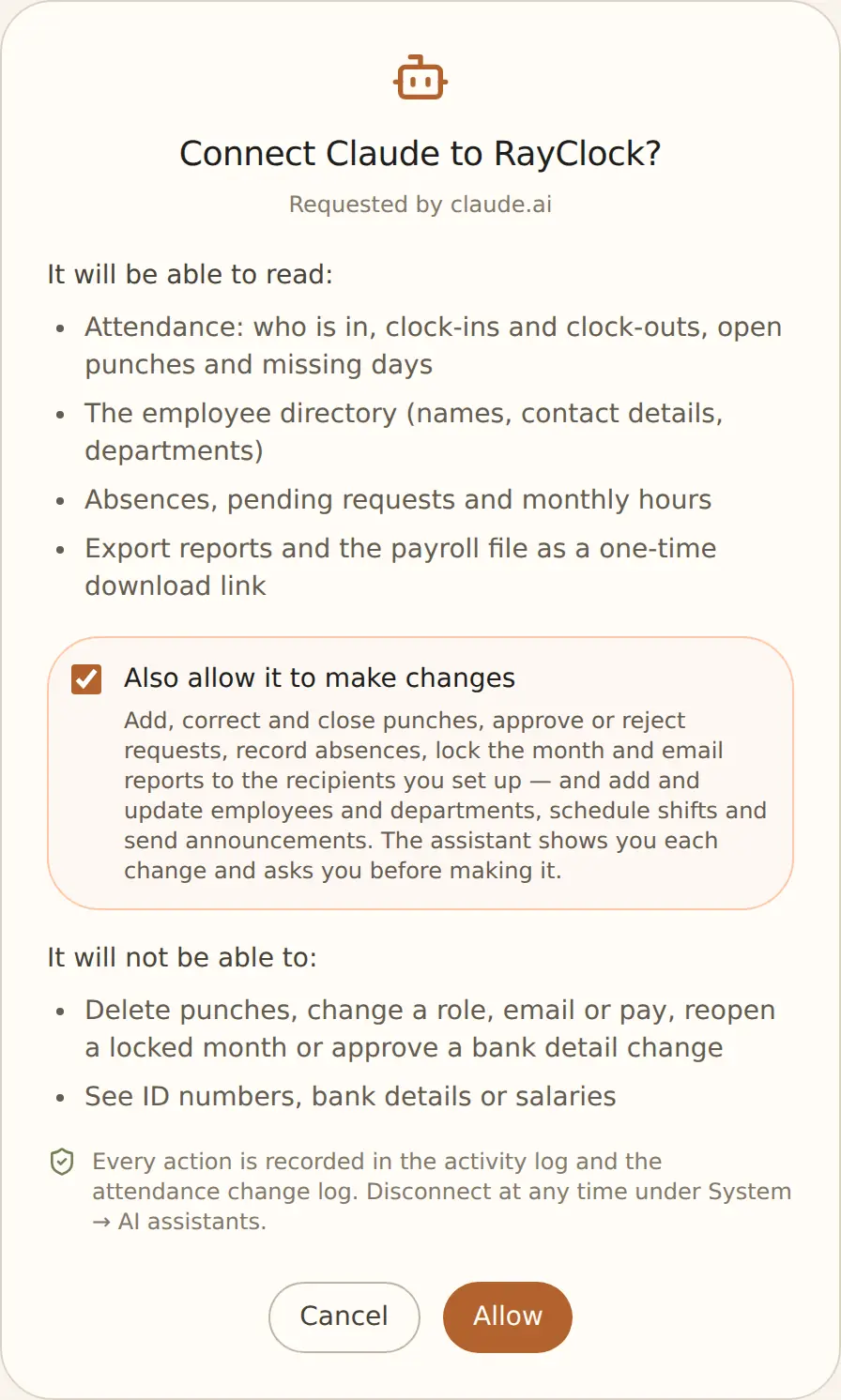
Yes, if you allow it. On RayClock’s consent screen the person connecting chooses: read only, or also “allow changes” (ticked by default). Before every change the assistant shows what will change, and Claude or ChatGPT asks for your confirmation. Changes follow the same rules as the app and are recorded in the activity log and the attendance change log as made by the AI assistant. Connections created before this stay read-only until you reconnect.
What can’t the assistant do?
As a security choice, a few sensitive actions stay in the app: changing a user’s role (employee, manager or admin), email or pay; deleting punches (correcting an existing punch’s time, with a reason, is possible); reopening a locked month; and approving bank-detail changes (that’s done in RayClock, where the new account number is visible). Report recipients can’t be changed from the chat either, and the assistant won’t lock a month with open items unless you explicitly insist.
What data does the assistant see?
Attendance and punches, the employee directory, absences and requests, profile change requests (which field — not the values), the month-end checklist, monthly hours per employee and the shift schedule (in companies with shift management) — that’s what an admin’s assistant sees. A manager’s assistant sees only what relates to the departments they manage, and an employee’s assistant sees only that employee’s own data. Either way, ID numbers, bank details and salaries are never sent to the assistant.
How do I export reports through the assistant?
Just ask, for example “Export the September payroll file”. The assistant returns a one-time download link valid for 15 minutes. The file goes straight to your browser, and its contents never pass through the AI conversation. You can export the daily report, monthly summary, an employee’s month, the absences report, project hours and the payroll file.
How do I disconnect?
Every user — admin, manager or employee — can see and disconnect their own connections in RayClock. The admin sees everyone’s connections under System, on the AI assistants screen, including whether each one is “read only” or “read and act”, and can disconnect any of them. Disconnecting takes effect immediately.