A site for every branch
Each branch has its own location check, kiosk and NFC tags, and every clock-in records the branch.
Every branch in one account: employees clock in at their branch, each manager sees their own team, and you see the whole chain.

Each branch has its own location check, kiosk and NFC tags, and every clock-in records the branch.
Make each branch a department, and its manager sees and approves only their own people.
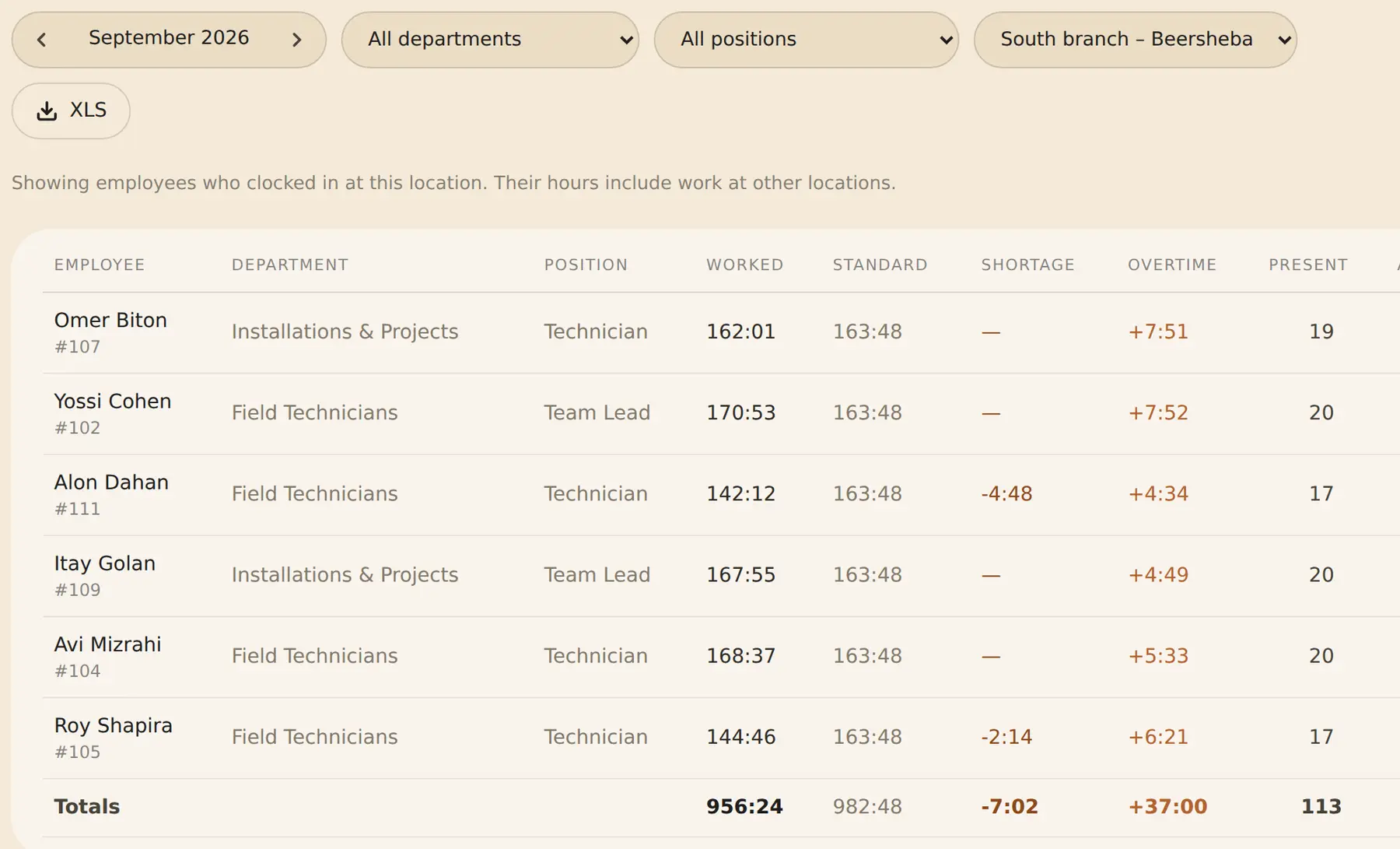
Filter any daily or monthly report by branch, or see the whole chain at once.
All branches close the month together and export to payroll in one file.
Dana belongs to the “Central branch” department, managed by Avi. On Tuesday she covers a shift at the “North branch”, managed by Michal.
| Who | Sees it? |
|---|---|
| Avi, Central branch manager (Dana’s department) | Yes, with the branch where she clocked in |
| Michal, North branch manager | No. A manager’s access follows the employee’s department, not the branch where they clocked in |
| Regional manager (a parent department above both branches) | Yes |
| Admin | Yes, the whole chain |
Illustrative example. The names are not a real business’s data.
Want to go through it together? Book a call, or read the setup guide and the security page.
Yes. They clock in at whichever branch they work at that day, and all their hours go into the same monthly report.
No. Staff clock in from their phone or at an NFC tag on the wall. A kiosk with employee cards is an option, not a requirement.
No. Add as many work sites as you need. Up to 150 employees, the price depends only on the number of active employees; above 150, we put together a tailored quote based on employees, sites and the kind of work.
Yes. On the employee’s profile you tick the branches where they may clock in, and a clock-in anywhere else — by phone, NFC tag or kiosk — is blocked. With nothing ticked, they can clock in at any branch.
Yes. In the consolidated report, turn on “Split by location” to see each employee’s hours at every branch; the report’s Excel file has a column per branch too. Overtime is calculated over all of an employee’s hours together, so it isn’t split by branch.
Time clock for stores and chains · Attendance reports and export · Shift scheduling and rotas
14-day trial, up to 100 employees, no credit card. After that, the price depends on the number of active employees.