A project for each funding source
Open a project for each programme, grant or call for proposals, with approved hours or budget and a period — and see how much has been used.
A coordinator who splits her week between two programmes, hourly instructors in the field, and a funder who wants to see how many hours went to their project.

Open a project for each programme, grant or call for proposals, with approved hours or budget and a period — and see how much has been used.
Employees report how many hours they worked on each project, with a timer or by adding time. These hours must fit within that day’s attendance, so nothing is counted twice.
In the employee file you record the employment type and job percentage. Instructors in the field clock in from their phone, and location can be attached to the punch according to your organisation’s settings.
A report of hours by project and employee arrives every month by email as an Excel file, to up to 25 recipients — without employees’ hourly cost.
Your accountant gets free, view-only access and downloads each month’s payroll file. You invite them, and you can disconnect them.
Overtime, Shabbat and holidays are calculated by law. At month end employees submit, you lock the month and export to payroll.
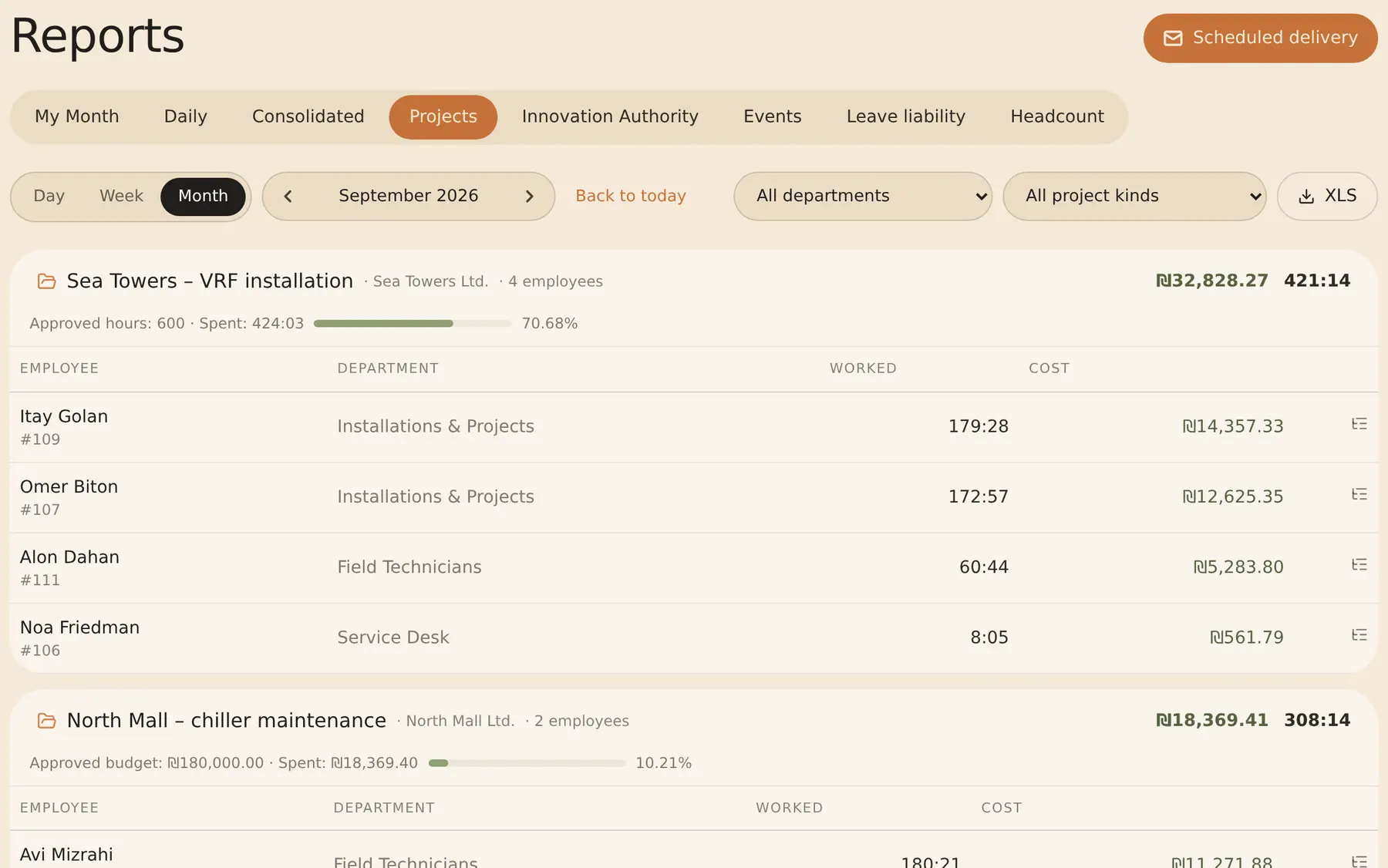
Yes. Set up a project for each funding source, and the report shows hours per project and employee, with export to Excel. If you set an approved budget or hours, you also see how much has been used.
Attendance comes from the punches and goes to payroll. On top of that, the employee reports how many of those hours went to each programme, and they must fit within that day’s attendance.
Only system admins. Cost is calculated from each employee’s hourly cost; other managers see hours only, and the emailed report includes hours without cost.
You can schedule a monthly project report sent by email as an Excel file to any address you choose, up to 25 recipients. The file is in RayClock’s format; if the funder requires its own form, you copy the figures into it.
No. RayClock is built for employees’ attendance and payroll, and has no dedicated volunteer management. Every user set as active counts for billing.
No. The accountant panel is free. You invite them from within the system, and they download the payroll files themselves, with read-only access.
Project and task time tracking · Attendance reports and payroll export · Panel for accountants · Payroll export · Attendance for a team with mixed employment types
A 14-day trial, up to 100 employees, no credit card. After that, pricing is by active employees.